# tio - a simple serial device I/O tool
[](https://circleci.com/gh/tio/tio/tree/master)
[](https://snapcraft.io/tio)
[](https://repology.org/project/tio/versions)
## 1. Introduction
tio is a simple serial device tool which features a straightforward
command-line and configuration file interface to easily connect to serial TTY
devices for basic I/O operations.
### 1.1 Motivation
To make a simpler serial device tool for talking with serial TTY devices with
less focus on classic terminal/modem features and more focus on the needs of
embedded developers and hackers.
tio was originally created to replace
[screen](https://www.gnu.org/software/screen) for connecting to serial devices
when used in combination with [tmux](https://tmux.github.io).
## 2. Features
* Easily connect to serial TTY devices
* Automatic connect
* Support for arbitrary baud rates
* List available serial devices
* Show RX/TX statistics
* Toggle serial lines
* Pulse the DTR line
* Local echo support
* Remap special characters (nl, cr-nl, bs, etc.)
* Line timestamps
* Support for delayed output per character
* Support for delayed output per line
* Support for translation of lowercase to uppercase
* Hexadecimal mode
* Log to file
* Autogeneration of log filename
* Configuration file support
* Activate sub-configurations by name or pattern
* Redirect I/O to file or network socket for scripting or TTY sharing
* Pipe input and/or output
* Bash completion
* Color support
* Man page documentation
## 3. Usage
### 3.1 Command-line
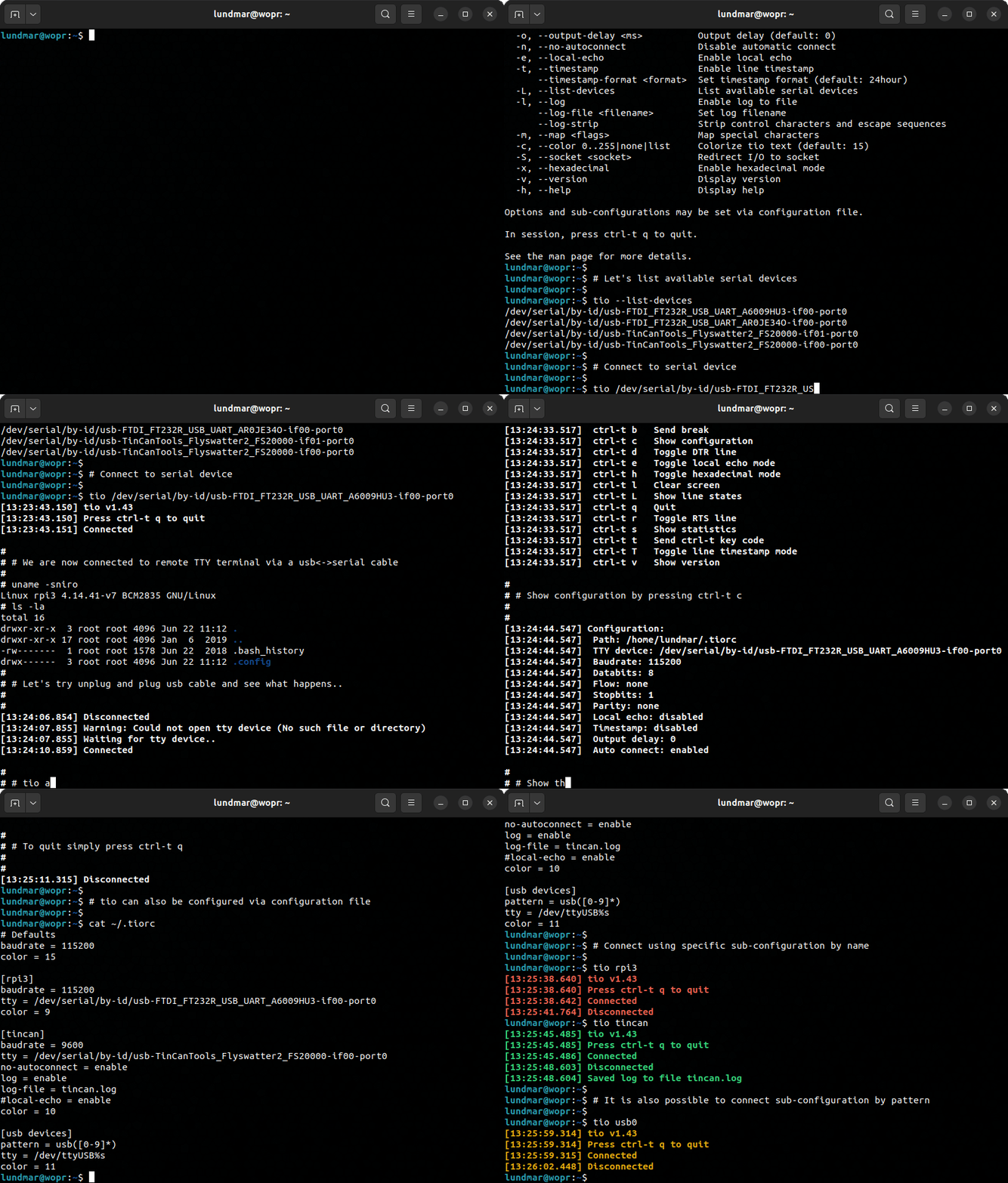
The command-line interface is straightforward as reflected in the output from
'tio --help':
```
Usage: tio []
Connect to tty device directly or via sub-configuration.
Options:
-b, --baudrate Baud rate (default: 115200)
-d, --databits 5|6|7|8 Data bits (default: 8)
-f, --flow hard|soft|none Flow control (default: none)
-s, --stopbits 1|2 Stop bits (default: 1)
-p, --parity odd|even|none Parity (default: none)
-o, --output-delay Character output delay (default: 0)
-O, --output-line-delay Line output delay (default: 0)
--dtr-pulse-duration DTR pulse duration (default: 100)
-n, --no-autoconnect Disable automatic connect
-e, --local-echo Enable local echo
-t, --timestamp Enable line timestamp
--timestamp-format Set timestamp format (default: 24hour)
-L, --list-devices List available serial devices
--dtr-pulse-duration DTR pulse duration (default: 100)
-n, --no-autoconnect Disable automatic connect
-e, --local-echo Enable local echo
-t, --timestamp Enable line timestamp
--timestamp-format Set timestamp format (default: 24hour)
-L, --list-devices List available serial devices
-l, --log Enable log to file
--log-file Set log filename
--log-strip Strip control characters and escape sequences
-m, --map Map special characters
-c, --color 0..255|none|list Colorize tio text (default: 15)
-S, --socket Redirect I/O to file or network socket
-x, --hexadecimal Enable hexadecimal mode
-v, --version Display version
-h, --help Display help
Options and sub-configurations may be set via configuration file.
In session, press ctrl-t q to quit.
See the man page for more details.
```
By default tio automatically connects to the provided TTY device if present.
If the device is not present, it will wait for it to appear and then connect.
If the connection is lost (eg. device is unplugged), it will wait for the
device to reappear and then reconnect. However, if the `--no-autoconnect`
option is provided, tio will exit if the device is not present or an
established connection is lost.
tio features full bash autocompletion.
Typical use is without options:
```
$ tio /dev/ttyUSB0
```
Which corresponds to the commonly used default options:
```
$ tio -b 115200 -d 8 -f none -s 1 -p none /dev/ttyUSB0
```
It is recommended to connect serial tty devices by ID:
```
$ tio /dev/serial/by-id/usb-FTDI_TTL232R-3V3_FTGQVXBL-if00-port0
```
Using serial devices by ID ensures that tio automatically reconnects to the
correct serial device if it is disconnected and then reconnected.
### 3.2 Key commands
Various in session key commands are supported. When tio is started, press
ctrl-t ? to list the available key commands.
```
[20:19:12.040] Key commands:
[20:19:12.040] ctrl-t ? List available key commands
[20:19:12.040] ctrl-t b Send break
[20:19:12.040] ctrl-t c Show configuration
[20:19:12.040] ctrl-t d Toggle DTR line
[20:19:12.040] ctrl-t D Pulse DTR line
[20:19:12.040] ctrl-t e Toggle local echo mode
[20:19:12.040] ctrl-t h Toggle hexadecimal mode
[20:19:12.040] ctrl-t l Clear screen
[20:19:12.040] ctrl-t L Show line states
[20:19:12.040] ctrl-t q Quit
[20:19:12.040] ctrl-t r Toggle RTS line
[20:19:12.041] ctrl-t s Show statistics
[20:19:12.041] ctrl-t t Send ctrl-t key code
[20:19:12.041] ctrl-t T Toggle line timestamp mode
[20:19:12.041] ctrl-t U Toggle conversion to uppercase
[20:19:12.041] ctrl-t v Show version
```
### 3.3 Configuration file
Options can be set via the configuration file first found in any of the
following locations in the order listed:
- $XDG_CONFIG_HOME/tio/tiorc
- $HOME/.config/tio/tiorc
- $HOME/.tiorc
The configuration file supports sub-configurations using named sections which can
be activated via the command-line by name or pattern. A sub-configuration
specifies which tty to connect to and other options.
Example configuration file:
```
# Defaults
baudrate = 9600
databits = 8
parity = none
stopbits = 1
color = 10
dtr-pulse-duration = 50
[rpi3]
tty = /dev/serial/by-id/usb-FTDI_TTL232R-3V3_FTGQVXBL-if00-port0
baudrate = 115200
no-autoconnect = enable
log = enable
log-file = rpi3.log
color = 12
[usb devices]
pattern = usb([0-9]*)
tty = /dev/ttyUSB%s
color = 13
```
To use a specific sub-configuration by name simply start tio like so:
```
$ tio rpi3
```
Or by pattern match:
```
$ tio usb12
```
## 4. Installation
### 4.1 Installation using package manager
Packages for various GNU/Linux distributions are available. Please consult your
package manager tool to find and install tio.
If you would like to see tio included in your favorite distribution, please
reach out to their package maintainers team.
### 4.2 Installation using snap
Install latest stable version:
```
$ snap install tio
```
Install bleeding edge:
```
$ snap install tio --edge
```
### 4.3 Installation from source
The latest source releases can be found [here](https://github.com/tio/tio/releases).
Install steps:
```
$ meson build
$ meson compile -C build
$ meson install -C build
```
See meson\_options.txt for tio specific build options.
Note: Please do no try to install from source if you are not familiar with
how to build stuff using meson.
## 5. Contributing
tio is open source. If you want to help out with the project please feel free
to join in.
All contributions (bug reports, code, doc, ideas, etc.) are welcome.
Please use the github issue tracker and pull request features.
Also, if you find this free open source software useful please feel free to
consider making a donation of your choice:
[](https://www.paypal.me/lundmar)
## 6. Support
Submit bug reports via GitHub: https://github.com/tio/tio/issues
## 7. Website
Visit [tio.github.io](https://tio.github.io)
## 8. License
tio is GPLv2+. See LICENSE file for more details.
## 9. Authors
Created by Martin Lund \
See the AUTHORS file for full list of contributors.