[]()
# tio - a serial device I/O tool
[](https://circleci.com/github/tio/tio/tree/master)
[](https://github.com/tio/tio/releases)
[](https://repology.org/project/tio/versions)
## 1. Introduction
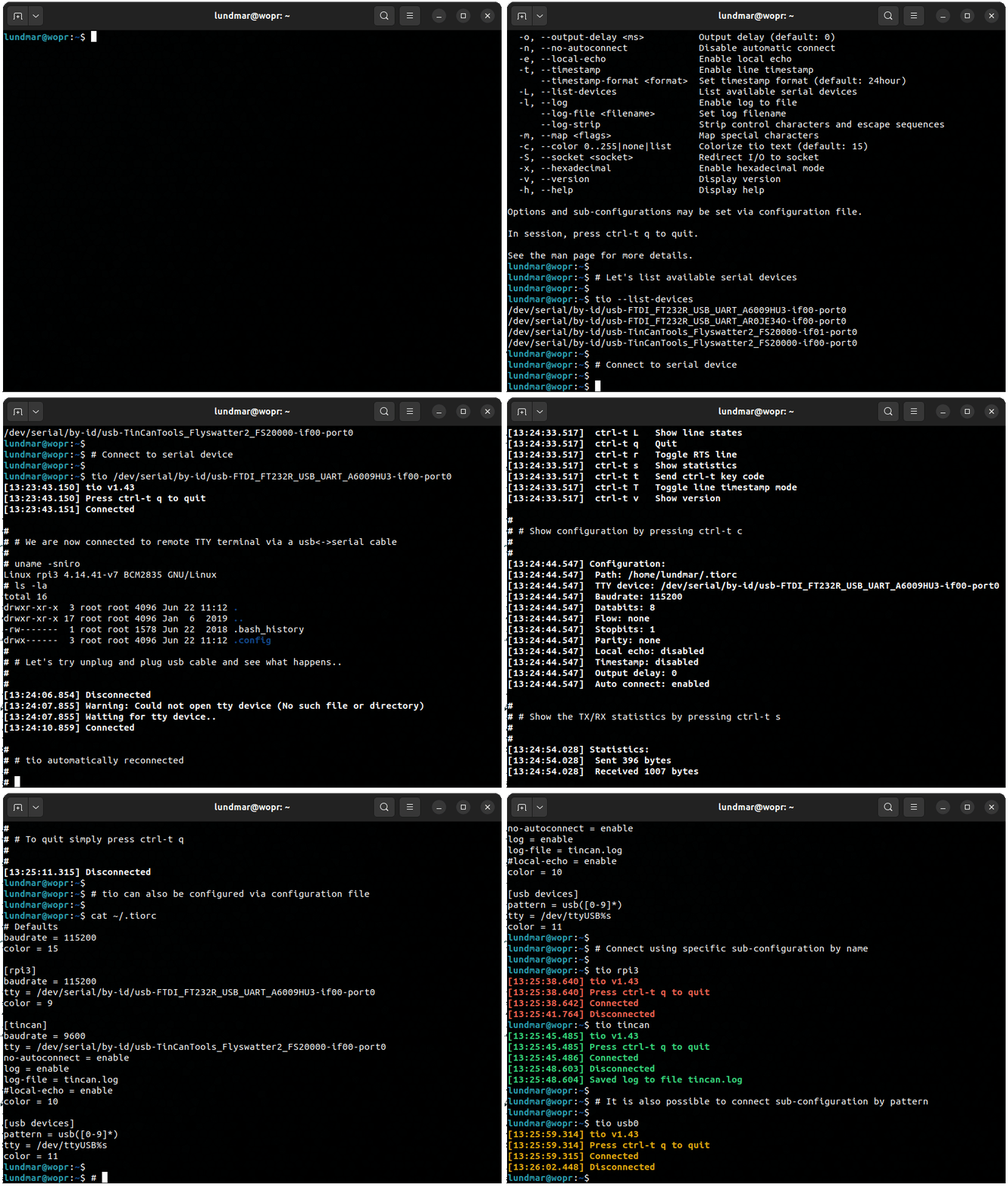
tio is a serial device tool which features a straightforward command-line and
configuration file interface to easily connect to serial TTY devices for basic
I/O operations.
### 1.1 Motivation
To make a simpler serial device tool for working with serial TTY devices with
less focus on classic terminal/modem features and more focus on the needs of
embedded developers and hackers.
tio was originally created as an alternative to
[screen](https://www.gnu.org/software/screen) for connecting to serial devices
when used in combination with [tmux](https://tmux.github.io).
## 2. Features
* Easily connect to serial TTY devices
* Sensible defaults (115200 8n1)
* Support for non-standard baud rates
* Support for mark and space parity
* Automatic connection management
* Automatic reconnect
* Automatically connect to first new appearing serial device
* Automatically connect to latest registered serial device
* Connect to same port/device combination via unique topology ID (TID)
* Useful for reconnecting when serial device has no serial device by ID
* X-modem (1K/CRC) and Y-modem file upload
* Support for RS-485 mode
* List available serial devices
* By device
* Including topology ID, uptime, driver, description
* Sorted by uptime (newest device listed last)
* By ID
* By path
* Show RX/TX statistics
* Toggle serial lines
* Pulse serial lines with configurable pulse duration
* Local echo support
* Remapping of characters (nl, cr-nl, bs, lowercase to uppercase, etc.)
* Switchable independent input and output
* Normal mode
* Hex mode (output supports variable width)
* Line mode (input only)
* Timestamp support
* Per line in normal output mode
* Output timeout timestamps in hex output mode
* Support for delayed output
* Per character
* Per line
* Log to file
* Automatic naming of log file (default)
* Configurable directory for saving automatic named log files
* Manual naming of log file
* Overwrite (default) or append to log file
* Strip control characters and escape sequences
* Configuration file support
* Support for configuration profiles
* Activate configuration profiles by name or pattern
* Redirect I/O to UNIX socket or IPv4/v6 network socket
* Useful for scripting or TTY sharing
* Pipe input and/or output
* Bash completion on options, serial device names, and profile names
* Configurable tio message text color
* Supports NO_COLOR env variable as per [no-color.org](https://no-color.org)
* Visual or audible alert on connect/disconnect
* Remapping of prefix key
* Lua scripting support for automation
* Run script manually or automatically at connect (once/always/never)
* Simple expect/send like functionality with support for regular expressions
* Manipulate port modem lines (useful for microcontroller reset/boot etc.)
* Send files via x/y-modem protocol
* Search for serial devices
* Man page documentation
* Plays nicely with [tmux](https://tmux.github.io)
## 3. Usage
For more usage details please see the man page documentation
[here](https://raw.githubusercontent.com/tio/tio/master/man/tio.1.txt).
### 3.1 Command-line
The command-line interface is straightforward as reflected in the output from
'tio --help':
```
Usage: tio []
Connect to TTY device directly or via configuration profile or topology ID.
Options:
-b, --baudrate Baud rate (default: 115200)
-d, --databits 5|6|7|8 Data bits (default: 8)
-f, --flow hard|soft|none Flow control (default: none)
-s, --stopbits 1|2 Stop bits (default: 1)
-p, --parity odd|even|none|mark|space Parity (default: none)
-o, --output-delay Output character delay (default: 0)
-O, --output-line-delay Output line delay (default: 0)
--line-pulse-duration Set line pulse duration
-a, --auto-connect new|latest|direct Automatic connect strategy (default: direct)
--exclude-devices Exclude devices by pattern
--exclude-drivers Exclude drivers by pattern
--exclude-tids Exclude topology IDs by pattern
-n, --no-reconnect Do not reconnect
-e, --local-echo Enable local echo
--input-mode normal|hex|line Select input mode (default: normal)
--output-mode normal|hex|hexN Select output mode (default: normal)
-t, --timestamp Enable line timestamp
--timestamp-format Set timestamp format (default: 24hour)
--timestamp-timeout Set timestamp timeout (default: 200)
-l, --list List available serial devices
-L, --log Enable log to file
--log-file Set log filename
--log-directory Set log directory path for automatic named logs
--log-append Append to log file
--log-strip Strip control characters and escape sequences
-m, --map Map characters
-c, --color 0..255|bold|none|list Colorize tio text (default: bold)
-S, --socket Redirect I/O to socket
--rs-485 Enable RS-485 mode
--rs-485-config Set RS-485 configuration
--alert bell|blink|none Alert on connect/disconnect (default: none)
--mute Mute tio messages
--script Run script from string
--script-file Run script from file
--script-run once|always|never Run script on connect (default: always)
-v, --version Display version
-h, --help Display help
Options and profiles may be set via configuration file.
See the man page for more details.
```
By default tio automatically connects to the provided TTY device. If the device
is not present, tio will wait for it to appear and then connect. If the
connection is lost (e.g. device is unplugged), it will wait for the device to
reappear and then reconnect. However, if the `--no-reconnect` option is
provided, tio will exit if the device is not present or an established
connection is lost.
#### 3.1.1 Examples
Typical use is without options:
```
$ tio /dev/ttyUSB0
```
Which corresponds to the commonly used default options:
```
$ tio --baudrate 115200 --databits 8 --flow none --stopbits 1 --parity none /dev/ttyUSB0
```
List available serial devices:
```
$ tio --list
Device TID Uptime [s] Driver Description
----------------- ---- ------------- ---------------- --------------------------
/dev/ttyS4 BaaB 19526.576 port 16550A UART
/dev/ttyS5 eV0Z 19525.845 port 16550A UART
/dev/ttyUSB1 bCC2 1023.274 ftdi_sio TTL232R-3V3
/dev/ttyUSB0 SPpw 978.527 ftdi_sio TTL232RG-VREG3V3
/dev/ttyACM0 i5q4 2.079 cdc_acm ST-Link VCP Ctrl
By-id
--------------------------------------------------------------------------------
/dev/serial/by-id/usb-FTDI_TTL232R-3V3_FTCHUV56-if00-port0
/dev/serial/by-id/usb-FTDI_TTL232RG-VREG3V3_FT1NELUB-if00-port0
/dev/serial/by-id/usb-STMicroelectronics_STLINK-V3_004900343438510234313939-if02
By-path
--------------------------------------------------------------------------------
/dev/serial/by-path/pci-0000:00:14.0-usb-0:8.1.3.1.4:1.0-port0
/dev/serial/by-path/pci-0000:00:14.0-usbv2-0:8.1.3.1.4:1.0-port0
/dev/serial/by-path/pci-0000:00:14.0-usbv2-0:6.4:1.0-port0
/dev/serial/by-path/pci-0000:00:14.0-usb-0:6.4:1.0-port0
/dev/serial/by-path/pci-0000:00:14.0-usbv2-0:6.3:1.2
/dev/serial/by-path/pci-0000:00:14.0-usb-0:6.3:1.2
```
It is recommended to connect serial TTY devices by ID:
```
$ tio /dev/serial/by-id/usb-FTDI_TTL232R-3V3_FTCHUV56-if00-port0
```
Note: Using serial devices by ID helps ensure that tio automatically reconnects
to the same serial device when reattached, even when it enumerates differently.
If no serial device by ID is available it is recommended to connect via
topology ID (TID):
```
$ tio bCC2
```
Note: The TID is unique and will stay the same as long as your USB serial port
device plugs into the same USB topology (same ports, same hubs, etc.). This way
it is possible for tio to successfully reconnect to the same device.
Connect automatically to first new appearing serial device:
```
$ tio --auto-connect new
```
Connect automatically to latest registered serial device:
```
$ tio --auto-connect latest
```
It is also possible to use exclude options to affect which serial devices are
involved in the automatic connection strategy:
```
$ tio --auto-connect new --exclude-devices "/dev/ttyACM?,/dev/ttyUSB2"
```
Exclude drivers by pattern:
```
$ tio --auto-connect new --exclude-drivers "cdc_acm,ftdi_sio"
```
Note: Pattern matching supports '*' and '?'. Use comma separation to define
multiple patterns.
Log to file with autogenerated filename:
```
$ tio --log /dev/ttyUSB0
```
Log to file with specific filename:
```
$ tio --log --log-file my-log.txt
```
Enable ISO8601 timestamps per line:
```
$ tio --timestamp --timestamp-format iso8601 /dev/ttyUSB0
```
Output to hex with width 16:
```
$ tio --output-mode hex16 /dev/ttyUSB0
```
Redirect I/O to IPv4 network socket on port 4242:
```
$ tio --socket inet:4242 /dev/ttyUSB0
```
Pipe data to the serial device:
```
$ cat data.bin | tio /dev/ttyUSB0
```
Manipulate modem lines on connect:
```
$ tio --script "set{DTR=high,RTS=low}; msleep(100); set{DTR=toggle,RTS=toggle}" /dev/ttyUSB0
```
Pipe command to serial device and wait for line response within 1 second:
```
$ echo "*IDN?" | tio /dev/ttyACM0 --script "expect('\r\n', 1000)" --mute
KORAD KD3305P V4.2 SN:32475045
```
### 3.2 Key commands
Various in session key commands are supported. When tio is started, press
ctrl-t ? to list the available key commands.
```
[15:02:53.269] Key commands:
[15:02:53.269] ctrl-t ? List available key commands
[15:02:53.269] ctrl-t b Send break
[15:02:53.269] ctrl-t c Show configuration
[15:02:53.269] ctrl-t e Toggle local echo mode
[15:02:53.269] ctrl-t f Toggle log to file
[15:02:53.269] ctrl-t F Flush data I/O buffers
[15:02:53.269] ctrl-t g Toggle serial port line
[15:02:53.269] ctrl-t i Toggle input mode
[15:02:53.269] ctrl-t l Clear screen
[15:02:53.269] ctrl-t L Show line states
[15:02:53.269] ctrl-t m Toggle MSB to LSB bit order
[15:02:53.269] ctrl-t o Toggle output mode
[15:02:53.269] ctrl-t p Pulse serial port line
[15:02:53.269] ctrl-t q Quit
[15:02:53.269] ctrl-t r Run script
[15:02:53.269] ctrl-t s Show statistics
[15:02:53.269] ctrl-t t Toggle line timestamp mode
[15:02:53.269] ctrl-t U Toggle conversion to uppercase on output
[15:02:53.269] ctrl-t v Show version
[15:02:53.269] ctrl-t x Send file via Xmodem
[15:02:53.269] ctrl-t y Send file via Ymodem
[15:02:53.269] ctrl-t ctrl-t Send ctrl-t character
```
If needed, the prefix key (ctrl-t) can be remapped via configuration file.
### 3.3 Lua script API
Tio suppots Lua scripting to easily automate interaction with the tty device.
In addition to the Lua API tio makes the following functions available:
```
expect(string, timeout)
Expect string - waits for string to match or timeout before continueing.
Supports regular expressions. Special characters must be escaped with '\\'.
Timeout is in milliseconds, defaults to 0 meaning it will wait forever.
Returns 1 on successful match, 0 on timeout, or -1 on error.
On successful match it also returns the match string as second return value.
send(string)
Send string.
Returns number of bytes written on success or -1 on error.
modem_send(file, protocol)
Send file using x/y-modem protocol.
Protocol can be any of XMODEM_1K, XMODEM_CRC, YMODEM.
tty_search()
Search for serial devices.
Returns a table of number indexed tables, one for each serial device
found. Each of these tables contains the serial device information accessible
via the following string indexed elements "path", "tid", "uptime", "driver",
"description".
Returns nil if no serial devices are found.
read(size, timeout)
Read from serial device. If timeout is 0 or not provided it will wait
forever until data is ready to read.
Returns number of bytes read on success, 0 on timeout, or -1 on error.
set{line=state, ...}
Set state of one or multiple tty modem lines.
Line can be any of DTR, RTS, CTS, DSR, CD, RI
State is high, low, or toggle.
sleep(seconds)
Sleep for seconds.
msleep(ms)
Sleep for miliseconds.
exit(code)
Exit with exit code.
```
### 3.4 Configuration file
Options can be set via the configuration file first found in any of the
following locations in the order listed:
- $XDG_CONFIG_HOME/tio/config
- $HOME/.config/tio/config
- $HOME/.tioconfig
The configuration file supports profiles using named sections which can be
activated via the command-line by name or pattern. A profile specifies which
TTY device to connect to and other options.
### 3.4.1 Examples
Example configuration file:
```
# Defaults
baudrate = 9600
databits = 8
parity = none
stopbits = 1
color = 10
[rpi3]
device = /dev/serial/by-id/usb-FTDI_TTL232R-3V3_FTGQVXBL-if00-port0
baudrate = 115200
no-reconnect = enable
log = enable
log-file = rpi3.log
line-pulse-duration = DTR=200,RTS=150
color = 11
[svf2]
device = /dev/ttyUSB0
script = expect("login: "); send("root\n"); expect("Password: "); send("root\n")
color = 12
[esp32]
device = /dev/serial/by-id/usb-0403_6014-if00-port0
script = set{DTR=high,RTS=low}; msleep(100); set{DTR=low,RTS=high}; msleep(100); set{RTS=low}
script-run = once
color = 13
[usb devices]
pattern = usb([0-9]*)
device = /dev/ttyUSB%s
color = 14
```
To use a specific profile by name simply start tio like so:
```
$ tio rpi3
```
Or by pattern match:
```
$ tio usb12
```
Another more elaborate configuration file example is available [here](examples/config/config).
## 4. Installation
### 4.1 Installation using package manager (Linux)
Packages for various GNU/Linux distributions are available. Please consult your
package manager tool to find and install tio.
If you would like to see tio included in your favorite distribution, please
reach out to its package maintainers team.
### 4.2 Installation using snap (Linux)
Install latest stable version:
```
$ snap install tio --classic
```
Note: Classic confinement is currently required due to limitations of the snapcraft framework.
See [Issue #187](https://github.com/tio/tio/issues/187) for discussion.
### 4.3 Installation using brew (MacOS, Linux)
If you have [brew](http://brew.sh) installed:
```
$ brew install tio
```
### 4.4 Installation using MSYS2 (Windows)
If you have [MSYS2](https://www.msys2.org) installed:
```
$ pacman -S tio
```
### 4.5 Installation from source
The latest source releases can be found [here](https://github.com/tio/tio/releases).
Install steps:
```
$ meson setup build
$ meson compile -C build
$ meson install -C build
```
See meson\_options.txt for tio specific build options.
Note: The meson install steps may differ depending on your specific system.
### 4.6 Known issues
Getting permission access errors trying to open your serial device?
Add your user to the group which allows serial device access. For example, to add your user to the 'dialout' group do:
```
$ sudo usermod -a -G dialout
```
## 5. Contributing
This is an open source project - all contributions (bug reports, code, doc,
ideas, etc.) are welcome.
Please use the github issue tracker and pull request features.
Also, if you find this free open source software useful please feel free to
consider making a donation of your choice:
[](https://www.paypal.me/lundmar)
## 6. Support
Submit bug reports via GitHub: https://github.com/tio/tio/issues
## 7. Website
Visit [tio.github.io](https://tio.github.io)
## 8. License
tio is GPLv2+. See LICENSE file for more details.
## 9. Authors
Maintained by Martin Lund \
See the AUTHORS file for full list of contributors.